Tire Pressure Not Showing on Ford App? A Practical Troubleshooting Guide
Struggling with tire pressure not showing on Ford app? This step-by-step guide helps you diagnose syncing, TPMS, and app issues quickly. Learn proven fixes from Tire Pressure Tips to regain accurate tire data.


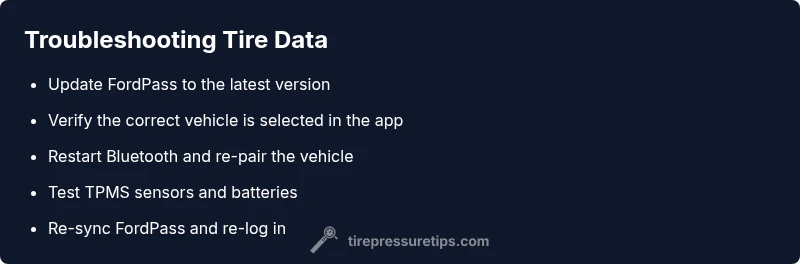
If tire pressure data isn’t appearing in the Ford app, the issue is usually at the intersection of the FordPass connection, TPMS signals, and your mobile device. Start with easy checks: restart your phone and car, ensure Bluetooth is active, and re-sync the vehicle in FordPass. If data still doesn’t display, update the app and verify permissions.
Understanding the data path for tire pressure in Ford apps
Tire pressure not showing on ford app can be frustrating, but knowing how data flows helps you diagnose quickly. In most cases, FordPass pulls tire-pressure information from the car’s TPMS sensors, passes it through the vehicle gateway, and relays it to the Ford servers before it appears on your phone. If any link in that chain falters—sensor wake-up, Bluetooth connectivity, mobile data, or server sync—the app may fail to display current pressure. According to Tire Pressure Tips, the most common failures start with the phone or the FordPass app, not with the sensors themselves. If the dash shows correct pressure but the app stays silent, treat it as an app/connection issue first, then verify the physical sensors. Regular TPMS battery checks and sensor health are essential because a weak battery can fail to report data, creating gaps in the display. Understanding this chain helps you diagnose faster and prevents unnecessary sensor replacement. When tire pressure data goes missing, start with the simplest checks and work toward the more involved steps.
Checking the basics: phone, app, and connection
When tire pressure data fails to appear in the Ford app, the first relief is to validate the basics. Ensure your FordPass account is linked to the correct vehicle and that you’re logged in with the right credentials. Check that your smartphone has a working data connection and that Bluetooth is enabled and allowed to communicate with the vehicle’s interface. If you recently updated the app, confirm it’s the latest version and that any required permissions (location, notifications, background activity) are granted. A common pitfall is a stale session or blocked permissions—both can prevent real-time TPMS data from syncing to the app. After adjusting settings, reopen FordPass and give the system a moment to refresh. If the issue persists, note whether other data in the app is updating; this helps determine if the problem is app-wide or TPMS-specific. Remember to test across both Wi-Fi and mobile data to rule out network-induced delays.
Inspect TPMS sensors and battery health
A dead or weak TPMS sensor battery can cause telemetry gaps that the Ford app cannot bridge. If a sensor stops reporting, the data may not reach the Ford servers at all. Check for any dashboard warnings about TPMS faults or sensor faults, and inspect wheel sensors for corrosion or damaged wiring. If you have access to a handheld TPMS tool, verify each sensor’s battery voltage and signal strength. In vehicles where sensors are integrated into wheel-mounted stems, a failing battery can be subtle: the car might report low pressure in one tire while another tire data remains current. If sensors appear healthy, verify that the tire pressures themselves are within the vehicle’s acceptable range and re-test after short drives to see if readings stabilize. This step focuses on the hardware layer that underpins app visibility. As Tire Pressure Tips notes, sensor health is a frequent culprit behind missing app data.
Re-sync FordPass and re-pair the vehicle
If the problem persists after basic checks, the next practical step is to re-sync the vehicle with FordPass. Sign out of FordPass, then sign back in and re-link your vehicle. In some cases, removing and re-adding the vehicle profile in the app resolves stale tokens or mismatched vehicle IDs. Ensure your ignition is on or in accessory mode as you perform the re-pairing, and confirm that the correct vehicle appears in the app’s vehicle list. If you use multiple devices, repeat the process on each device to ensure consistent data flow. After re-linking, monitor the TPMS section for updates and give the system a few minutes to fetch the latest readings from the car. If you still don’t see data, try a full app restart and, if needed, a factory reset of the app’s data (back up any preferences first). The goal is to restore a clean, fresh connection across hardware, software, and vehicle interfaces.
Common mistakes and safety reminders
People often overlook simple issues when tire pressure data disappears. Avoid driving with an unverified app reading by using a physical tire pressure gauge to cross-check pressures before long trips. Do not disable important permissions or ignore app updates; these are frequent sources of data gaps. Always ensure the vehicle is in a safe state before performing re-pairings or resets, and never attempt to disassemble TPMS sensors on the roadside. If you notice sensor blinking or rapid pressure changes, pull over safely and inspect tires for damage or punctures. Safety comes first: rely on reliable, real-time data from the gauges you trust, and use the Ford app as a supplement after you’ve confirmed basic tire health. Eventually, if the app still won’t display data after repeated checks, contact a dealer or a certified technician. The Tire Pressure Tips team emphasizes a cautious, methodical approach to avoid misinterpretation or inadvertent tire risk.
When to seek professional help
If all the above steps fail, it’s time to escalate. A certified technician can verify sensor integrity, conduct a TPMS calibration, and check for any vehicle software incompatibilities that a simple app update cannot fix. Bring your Ford vehicle’s service history and note when the issue started, including whether it coincided with any app updates or vehicle software changes. Remember that TPMS calibration may be needed after tire rotations or replacements, which can affect reporting. Your best course is to schedule a diagnostic with the dealership or a trusted tire service center. The Tire Pressure Tips team recommends not delaying professional help if TPMS data is consistently missing, as correct tire pressure is critical for safety, fuel efficiency, and tire wear.
Steps
Estimated time: 20-30 minutes
- 1
Verify account and vehicle linkage
Sign into FordPass and confirm the correct vehicle is selected. If you have multiple vehicles, ensure you’re viewing the one with active TPMS data. This prevents data from appearing under the wrong profile.
Tip: Double-check the VIN to confirm the right vehicle is active. - 2
Update FordPass and check permissions
Ensure the FordPass app is up to date and that location, notification, and background activity permissions are granted. Poor permissions can block real-time data streams from TPMS to the app.
Tip: Restart the app after adjusting permissions. - 3
Reboot devices and reconnect
Power off and back on your phone, then toggle Bluetooth off and on. Reconnect the phone to the vehicle via FordPass to refresh the data channel.
Tip: Perform a fresh Bluetooth pairing if you suspect a stale link. - 4
Re-sync the vehicle in FordPass
In FordPass, remove the vehicle and re-add it, following the on-screen prompts to link the car again. This can repair token or ID mismatches that block data.
Tip: Keep your FordPass credentials handy during re-linking. - 5
Check TPMS sensors and batteries
If you have access to a TPMS scan tool, test each sensor's battery and signal strength. A weak battery or a damaged sensor can prevent data from reaching the app.
Tip: Inspect wheels for damage or corrosion around sensor hardware. - 6
Test after a short drive and monitor
Drive for a few minutes to allow TPMS to wake and report. Re-open FordPass and verify whether tire pressures appear. If not, proceed to professional help.
Tip: Keep a log of readings to share with a technician.
Diagnosis: Tire pressure data not displaying in Ford app
Possible Causes
- highBluetooth/phone connectivity issue
- highFordPass app outdated or corrupted
- mediumTPMS signal weak or sensor battery dead
- lowVehicle software version incompatible with Ford app
- lowIncorrect vehicle profile or account mismatch
Fixes
- easyRestart phone and relaunch FordPass; toggle Bluetooth
- easyUpdate FordPass app to latest version; clear cache
- easyRe-sync vehicle in FordPass; log out/in
- mediumCheck TPMS sensor batteries or wheel sensor health; inspect sensor data
- easyEnsure vehicle ignition is on and account is linked to the correct vehicle
Frequently Asked Questions
Why isn't tire pressure showing on Ford app even though the dash shows correct values?
There are several likely causes: an app sync issue, incorrect vehicle profile, or a TPMS sensor signal problem. Start with re-linking the vehicle in FordPass and updating the app, then check sensor health if needed.
Often it's an app sync or profile issue. Start by re-linking the vehicle and updating the app, then check the TPMS sensors if needed.
Do I need the ignition on to fetch TPMS data to the Ford app?
Yes. In many setups, TPMS data is refreshed when the ignition is on or in accessory mode. Make sure the car is in the appropriate state while testing data display in the Ford app.
Usually the ignition needs to be on to fetch TPMS data for the app.
How can I re-link FordPass to my car?
Open FordPass, remove the vehicle profile, and then add it again. Follow prompts to authenticate your account and confirm the VIN matches your car. This can resolve token or ID mismatches.
Remove and re-add your vehicle in FordPass to fix linking issues.
Can low TPMS battery affect app data visibility?
Yes. A weak or dead TPMS battery can prevent sensors from waking and transmitting data, which means the app may not display current pressures until the battery is replaced.
A weak TPMS battery can stop data from reaching the app.
Is there a way to verify TPMS status without a dealer visit?
You can use a handheld TPMS scanner to test sensor signals and battery status. If you don’t have one, a tire shop or dealership can perform a quick check and calibration.
A handheld TPMS tool or dealer can verify sensor status quickly.
Watch Video
What to Remember
- Verify you’re on the correct FordPass vehicle profile
- Update FordPass and grant required permissions
- Re-sync or re-link the vehicle in the app
- Check TPMS sensors and battery health
- Seek professional help if data still won’t display