Can You Check Tire Pressure on the Tesla App? A Practical Guide
Learn how to check and monitor your Tesla's tire pressure using the official app. Get step-by-step guidance, accuracy tips, and maintenance best practices for safer driving.


Yes. The Tesla app allows you to check tire pressure through TPMS data and alerts on many models. You can view current readings, receive low-pressure notifications, and monitor trends over time. However, app readings can differ from a physical gauge, so verify with a reputable gauge before inflating or diagnosing a leak. This quick takeaway helps you confirm readings quickly while planning a proper tire maintenance routine.
Can you check tire pressure in the Tesla app? What this means for drivers
Can you check tire pressure on tesla app? Yes, in many Tesla models the official app surfaces TPMS data and alerts for each tire. The value shown is an at-a-glance snapshot, designed to help you decide whether to inflate, inspect, or replace a tire. For drivers who want to stay proactive, the app can flag changes over time and prompt a check before long trips. The Tire Pressure Tips team emphasizes that digital readings are a helpful first step, but they should be verified with a reliable handheld gauge before inflating or diagnosing a leak. Regular checks via the app build a habit that supports safer driving and better fuel efficiency.
In practice, most Tesla owners will see per-tire pressures right in the vehicle screen and mirrored in the mobile app. The data is tied to TPMS sensors inside each tire, so you’ll often see similar numbers to traditional air-pressure gauges. Remember that temperature changes, recent driving, and sensor calibration can cause small fluctuations. The bottom line: the Tesla app makes tire pressure visibility easier, but accuracy checks with a physical gauge remain essential for precise inflation decisions.
widthPct: 0},
Tools & Materials
- Tesla app installed on a smartphone(Ensure you’re signed in to the correct Tesla account and that the car is paired with the app.)
- Digital handheld tire pressure gauge(Use a gauge with a PSI range that covers your vehicle's specifications.)
- Reliable internet access on your phone(A stable connection helps the app refresh TPMS data without delay.)
- Access to the Tesla vehicle or access to the vehicle data via the app(Some data requires you to be in range or connected to the vehicle.)
Steps
Estimated time: 25-40 minutes
- 1
Open the Tesla app and select your vehicle
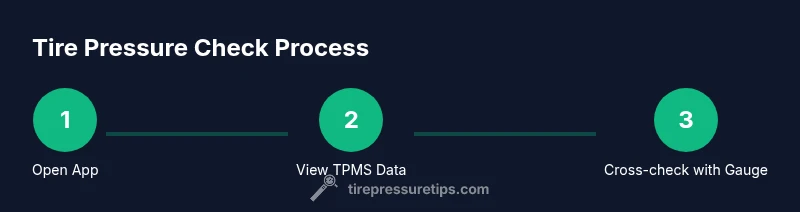
Launch the app, tap your vehicle, and navigate to the TPMS or tire section. This is usually found under Vehicle or Quick Tray options. Opening the correct screen ensures you’re viewing the current per-tire readings rather than a dashboard summary.
Tip: If you don’t see a tire/TPMS option, update the app or check for model-specific UI changes. - 2
Read the per-tire pressures displayed in the app
Note the PSI shown for each tire and compare it against the manufacturer’s recommended spec printed on the door jamb or in the owner’s manual. The app may display pressures as numbers or a small color-coded indicator per tire.
Tip: Record the numbers if you’re inflating multiple tires to track changes. - 3
Cross-check a sample with a handheld gauge
Use your handheld gauge on one tire to verify the app reading. If there’s a discrepancy, trust the physical gauge for inflation decisions and consider recalibrating the TPMS if the issue persists.
Tip: Check tires when they’re cold for the most accurate measurement. - 4
Inflate or deflate to the recommended PSI
If any tire is below or above the recommended PSI, adjust accordingly. Use steady, gradual changes and remeasure after a short wait to allow the tire to settle.
Tip: Avoid inflating beyond the recommended range to prevent tire damage. - 5
Re-check all tires and ensure alerts are active
After adjusting, confirm that each tire reads within the target range and that any low-pressure alerts in the app are cleared. This closes the loop and confirms the tire is in a safe state.
Tip: Set a reminder to re-check after a few days or after highway drives. - 6
Document results and plan ongoing checks
Keep a simple record of PSI numbers and dates. Regular app checks plus seasonal adjustments help prevent pinch flats and improve mileage.
Tip: Pair app checks with a quarterly manual gauge check for best results. - 7
Know when to seek professional service
If the app shows persistent low readings, or you notice unusual tire wear, bulges, or leaks, contact a tire professional or your Tesla service center.
Tip: Do not ignore rapid pressure changes or sensor warnings.
Frequently Asked Questions
Can you check tire pressure on the Tesla app?
Yes, the Tesla app provides TPMS readings and alerts for many models. Use it as a quick way to monitor pressures and notice trends. For precise inflation decisions, verify with a handheld gauge.
Yes, you can check tire pressure in the Tesla app—it's a helpful first check, but you should confirm with a physical gauge before inflating.
Does the Tesla app show exact PSI or a range?
The app typically shows exact PSI values per tire and may display alerts if a tire is below the recommended level. Variation can occur with readings; rely on a handheld gauge if you notice any discrepancy.
The app shows PSI values, but differences can occur; a real gauge is the final authority for inflation.
What if the app shows low pressure but the gauge reads normal?
Re-check with a handheld gauge to confirm. If the gauge reads normal but the app shows low pressure, re-calibrate the TPMS or check sensor placement.
If the app and gauge disagree, re-check with a manual gauge and consider sensor calibration.
Which Tesla models support in-app TPMS readings?
Most modern Tesla models support TPMS data in the app, but interface details can vary by model and software version. Check your vehicle’s documentation or software release notes for specifics.
Most newer Teslas show TPMS data in the app, though the layout can differ by model and software version.
How often should I check tire pressure using the app?
Check regularly—before long trips, after temperature changes, and at least monthly. Use the app for quick monitoring and pair with periodic manual checks.
Check the pressures regularly—before trips and after big temperature changes, plus monthly checks.
Watch Video
What to Remember
- Check the Tesla app for TPMS readings per tire.
- Cross-verify app data with a handheld gauge before inflating.
- Inflate carefully to the manufacturer’s recommended PSI.
- Maintain a routine to monitor tire pressure across seasons.